Background removal workflow
Remove Background from Clipart
Separate your artwork from a flattened background, then inspect delicate edges before reusing the PNG in invitations, digital layouts or product mockups.
Try your imageOne JPEG, PNG or WebP · under 10 MB · PNG output
Before you upload
- Start with your largest original raster export rather than a marketplace preview or a screenshot with a watermark.
- Use one isolated illustration with space around its edges. Separate a crowded clipart sheet before uploading.
- If the artwork already has good transparency, keep the original. This tool is for a background that still needs removal.
Online tool
Upload one clipart image
Up to 10 MB · 1 credit only after success
Sign in to remove the background from one image, inspect the result, and download a transparent PNG. A completed removal uses one credit. Credits and pricing
A real first-pass example
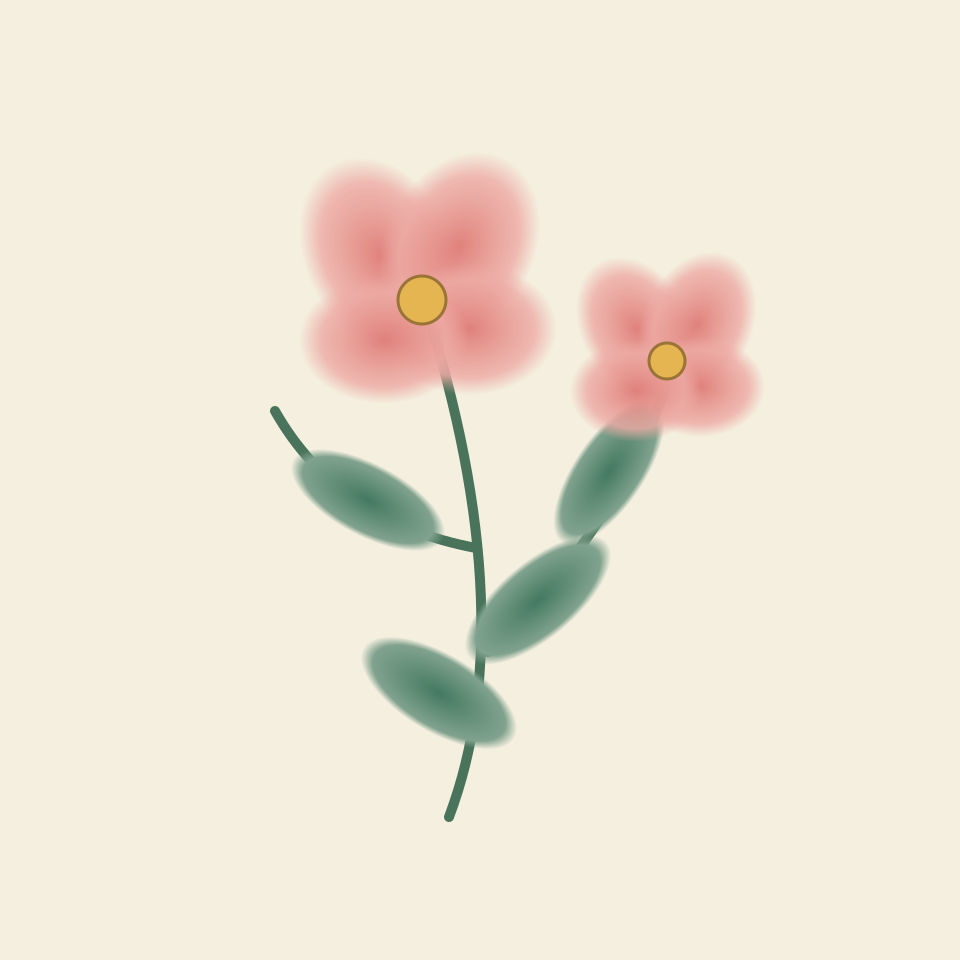
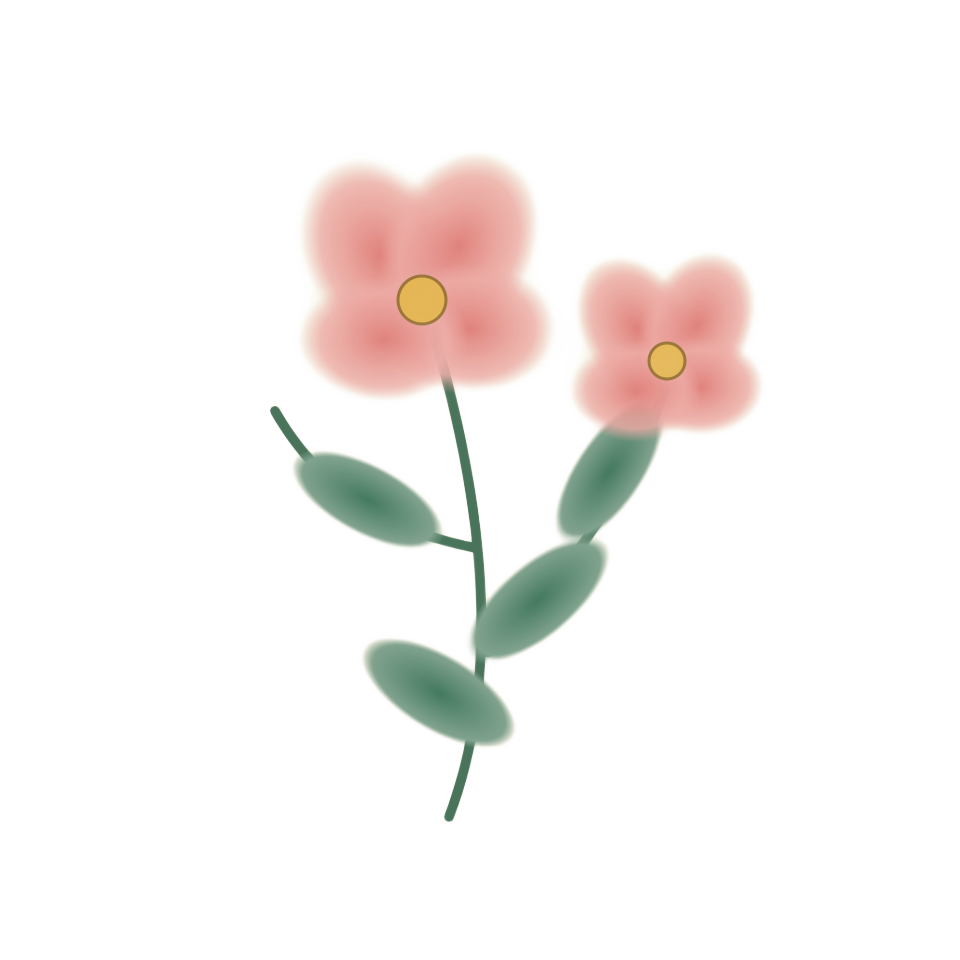
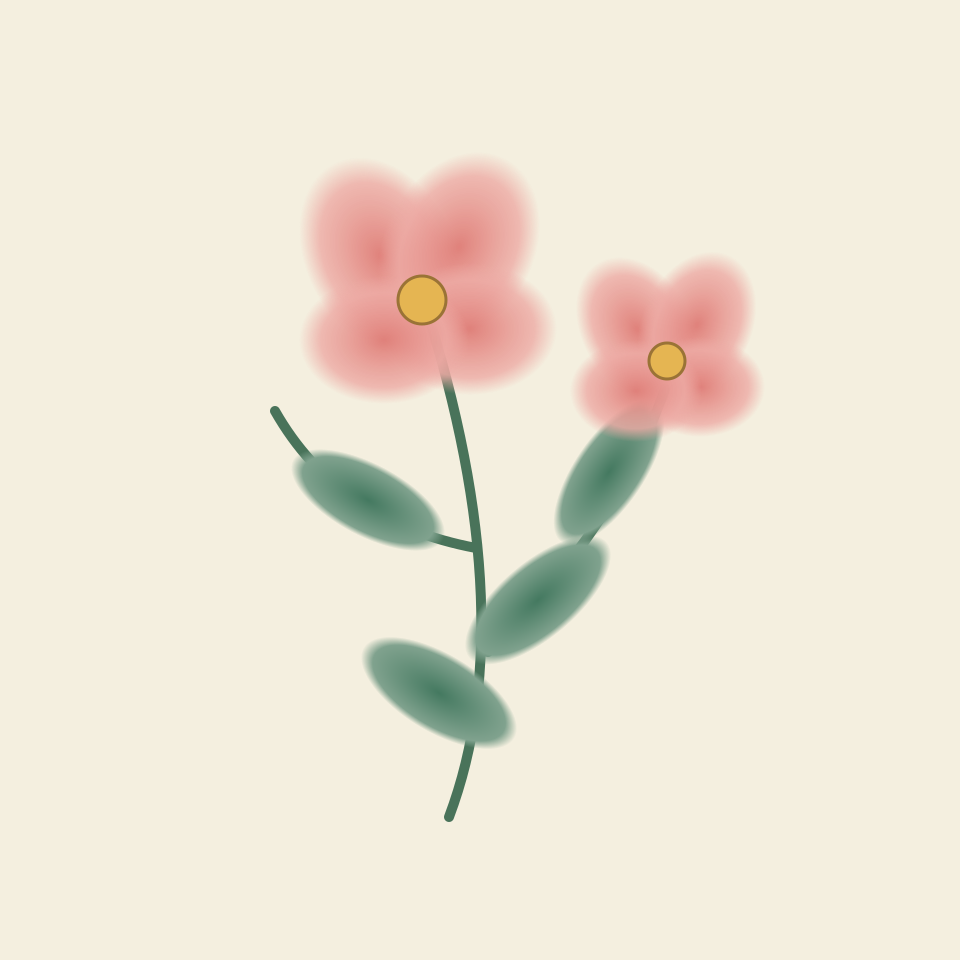
Original soft-edge floral illustration, flattened onto cream and processed once. A pale fringe remains visible on the dark preview, so the mask would need refinement for a dark layout. This is a rasterized vector example, not a watercolor scan.
Decide whether the paper is part of the artwork
A scan or flattened PNG can contain paper texture, light washes and deliberately faded brushwork. The model has to estimate which pixels belong to the subject. A pale petal against cream paper is harder to separate than a solid icon on a contrasting color. Before uploading, decide whether you want the paper texture removed or whether it is an intentional part of the illustration.
Transparent PNG is a raster format. Removing its background will not turn the drawing into SVG paths or restore detail lost in a small source. If you still have the original layered or vector document, exporting transparency directly from that document may preserve more of your artwork than estimating a new mask.
Compare soft edges on more than a checkerboard
The checkerboard is only a preview background. Use the light and dark preview controls below to see whether cream-colored fringes remain and whether delicate leaves or petals were removed. An image can have a valid alpha channel while still having an edge you would not want to use on a dark invitation.
Watercolor and other translucent artwork need particular care: the faintest color may be treated as background. Automatic removal does not reconstruct the original transparent paint layer. If the result trims too much, try a higher-quality export with more contrast or refine the mask in the editor that holds your original artwork. Repeatedly submitting the same source is not a guaranteed correction.
Prepare a reusable PNG asset
After reviewing the edge, download the result as PNG and import the actual file into your design app. A screenshot of the checkerboard will bake the squares into the image. Likewise, saving the result as JPEG will flatten transparency. Keep the transparent master separately from any flattened customer preview.
Use artwork you created or have permission to edit and distribute. A listing title can describe the kind of asset you want to prepare, but it does not grant a license to another seller’s images. The sample on this page is an original soft-edge vector illustration flattened onto cream, not a scan of watercolor paint.
Check before you use the result
- Fine stems and pale petals remain recognizable.
- No solid paper rectangle remains around the illustration.
- Light and dark previews reveal any colored fringe.
- The downloaded PNG, rather than a preview screenshot, imports transparently.
Questions about this workflow
Does this make new clipart?
No. It removes a background from an existing image. It does not generate a new illustration or change the artwork’s license.
Can I upload SVG or a whole bundle?
The uploader accepts one JPEG, PNG or WebP under 10 MB. Export a raster image first and process individual assets separately.
Will watercolor edges stay unchanged?
Not necessarily. Very faint pigment can be removed or become less opaque. Check the original and the output against the background you plan to use.