Background removal workflow
Remove Background from Jewelry Photos
Prepare a transparent cutout of a necklace, ring or earring for your own product layout. Inspect the small details that make jewelry recognizable before exporting.
Try your imageOne JPEG, PNG or WebP · under 10 MB · PNG output
Before you upload
- Use the original photo with the entire clasp and chain in frame; a screenshot can hide the smallest links.
- Place the item on a plain surface that contrasts with the metal. Separate overlapping chains before photographing.
- Choose JPEG, PNG or WebP under 10 MB. Upload one view at a time; no text prompt or jewelry mode is needed.
Online tool
Upload one jewelry photo
Up to 10 MB · 1 credit only after success
Sign in to remove the background from one image, inspect the result, and download a transparent PNG. A completed removal uses one credit. Credits and pricing
A real first-pass example
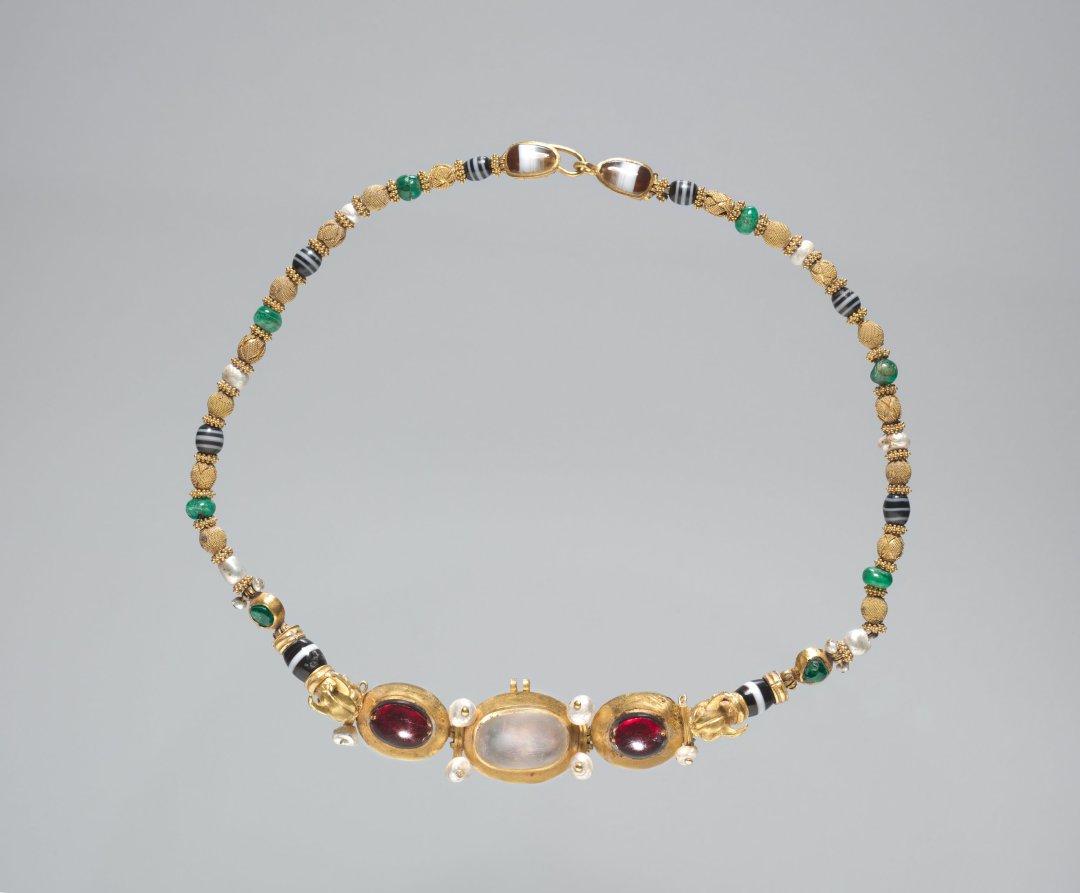
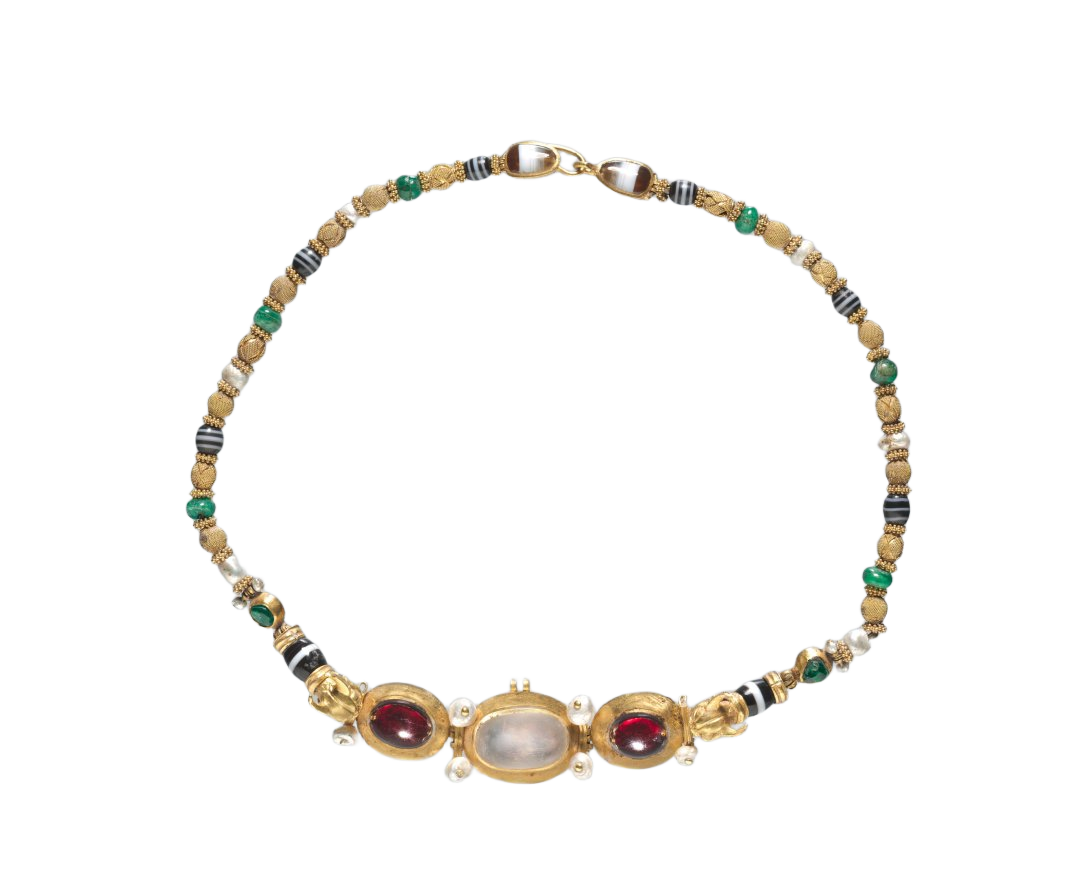
One real first-pass cutout of the Cleveland Museum of Art’s CC0 necklace photo. Switch the preview background to inspect the inner opening and the small links; this example is not a guarantee for fine chains.
Start with a photograph that separates metal from its surroundings
A shiny item contains reflections of its surroundings. Removing the background does not remove those reflections from the metal or gemstones, and it cannot recover a chain link hidden behind another object. Soft, even lighting and a contrasting surface give you a clearer starting point. Keep the whole item inside the frame, including earring hooks and the small loop beside a clasp.
If you photograph several pieces together, the model may keep several objects. Photograph the piece you intend to sell on its own when you need a single product cutout. Do not crop through a chain to make the upload smaller; reducing file size while retaining the complete outline is a safer starting point.
Check openings as carefully as the outer silhouette
A necklace has a large inner opening, but it may also have dozens of small gaps between links and settings. A clean outer edge does not prove those gaps were removed. Compare the original and PNG at a useful zoom, then place the cutout on both a light and a dark surface. Look for leftover background in the center, broken hooks, missing prongs and a faint rim around bright metal.
This tool creates an automatic cutout; it does not expose a manual mask brush. If a fine chain disappears, use a sharper source or take another photo with stronger separation from the surface. Where an irreplaceable detail still fails, finish the mask in an editor rather than presenting that result as an accurate product image.
Build the listing layout after the cutout is approved
Download the PNG and place it over your chosen layout in an editor. Keep a copy of the untouched product photo for comparison. A white listing background and a transparent PNG are different deliverables: the PNG can carry alpha transparency, while a final JPEG layout will flatten that transparency onto a color.
Background removal does not change a stone’s grade, polish scratches, add a missing clasp or produce a new camera angle. Keep factual product details and condition visible. Review the final composite at the size buyers will see, since a thin chain can disappear when a large photograph is reduced to a small thumbnail.
Check before you use the result
- Inner necklace opening and small gaps are clear.
- Clasps, hooks and separate chain segments are still visible.
- Bright stones and metal do not become unexpectedly translucent.
- The cutout looks acceptable on both light and dark layouts.
Questions about this workflow
Will it preserve every link?
No. Fine links, low contrast and overlapping chains can produce missing or translucent details. Inspect your result before using it commercially.
Does it remove reflections or add a white background?
It removes the detected background. Reflections within the jewelry can remain; add a solid background later in your layout editor.
Can I process a pair of earrings?
You can upload a photo containing a pair, but check that both pieces survive the cutout. The tool does not identify a required number of separate objects.