Workflow
From Selfie to Shareable: A 30-Minute Halloween Workflow
A realistic 30-minute workflow for a Halloween portrait and a five-second clip: choose a look, fix the source, generate, inspect, and publish.
Most Halloween content projects fail because they start with a costume idea and end with a folder of half-edited images. A 30-minute workflow with a fixed sequence is more likely to produce something you can post.
This plan assumes one person, one source photo, one preset, and one short video. It is intentionally small.
Minutes 0 to 5: choose the story
Pick one look and one reason to share it: a costume preview, a party invitation, a pet portrait, or a couple announcement. The reason determines the crop, the background, and the caption.
Do not choose five presets. Choose one primary look and one backup. The backup is for a failed generation, not for indecision.
Minutes 5 to 10: fix the source
Use a recent photo with the face clearly visible. Crop out distractions, but leave space around the shoulders for the costume. Do not apply a heavy filter before uploading.
Check the file size and format. A JPG, PNG, or WebP under 10 MB is supported. Use the original file rather than a screenshot.
Minutes 10 to 20: generate and inspect
Run the primary preset. While it processes, read the prompt and decide what you will inspect first: face, hands, hair, costume edge, or background.
When the result appears, compare it with the source at the same scale. If the face is wrong, stop. If the face is right but a small detail is wrong, decide whether the detail matters at posting size.
Seasonal workspace
Try the look
JPG, PNG or WebP · up to 10 MB · 1 credit only after success
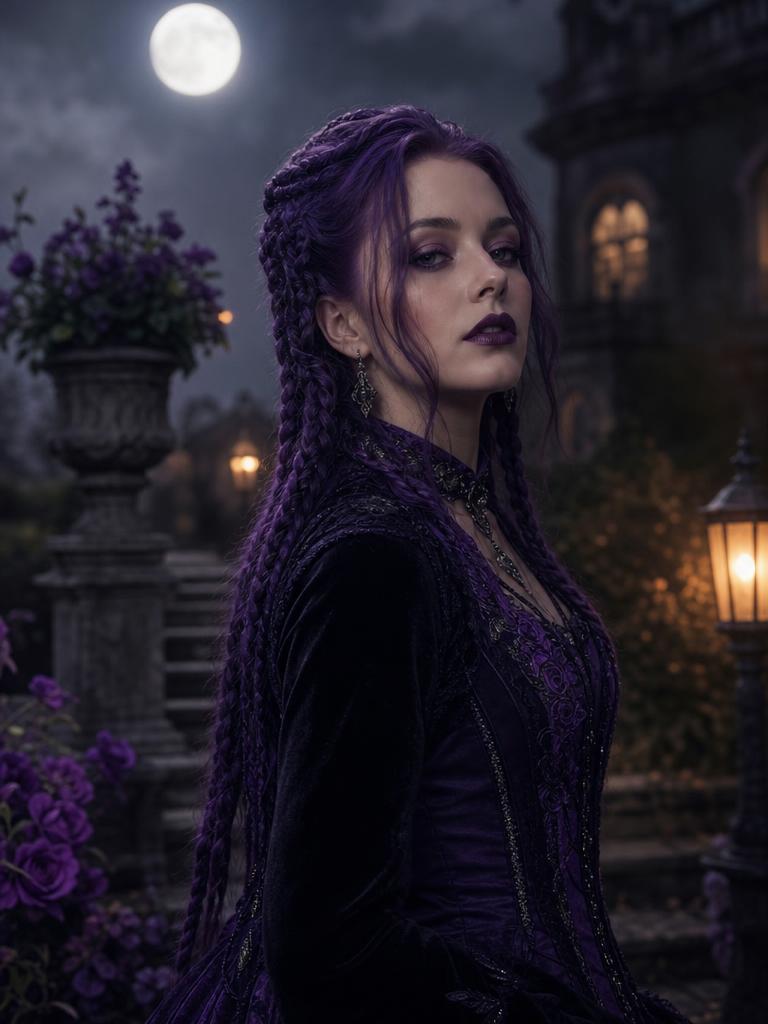
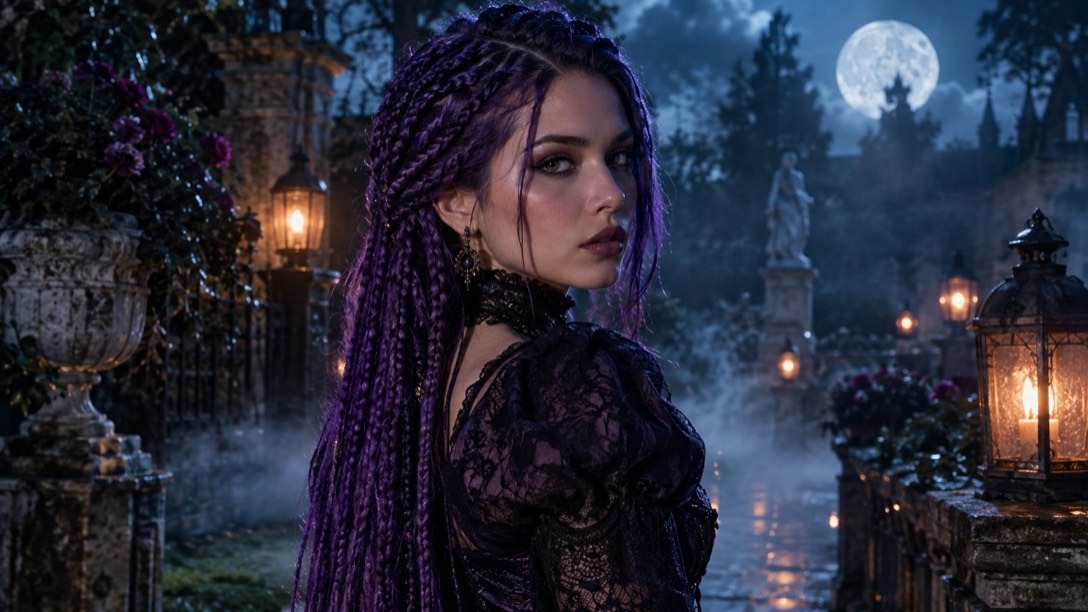
Violet braids, moonlight, and a Victorian garden.
Prompt recipe
Use the uploaded photo as the primary reference. Preserve the subject's recognizable facial identity, facial proportions, skin tone, approximate age, body proportions, pose and natural anatomy. Keep the same number of people as the uploaded photo. Avoid altered facial identity, extra people, extra limbs, duplicated fingers, distorted anatomy, text, logos and watermarks. Transform the subject into an original gothic Halloween fashion portrait. Change the hairstyle into long violet braids decorated with delicate silver hair accessories. Replace the clothing with an elegant black-and-purple velvet outfit featuring subtle lace and metallic details. Place the subject in a moonlit Victorian garden with soft fog, glowing lanterns and dark autumn foliage. Use photorealistic editorial photography, realistic fabric textures, natural skin details and cinematic soft lighting.
New accounts get 5 free credits. Sign in to use them.
Minutes 20 to 25: make the clip
Use the best portrait as the first frame. Choose a simple motion: a head turn, a blink, or drifting fog. Keep the clip to five seconds.
Pause at the first, middle, and last second. If the face drifts, simplify the motion or keep the still image only.
Minutes 25 to 30: prepare the post
Download the image and the clip. Write a caption that says what the look is and whether it is AI-generated. Add a short note about the preset if you want people to try it.
Keep the source, prompt, and result together in one folder. Next time, you will know which source and prompt produced the result you liked.
What to do when it fails
If the face changes, use a sharper source. If the costume is wrong, change the preset. If the background is noisy, choose a simpler scene. Change one variable at a time.
If the tool fails technically, check the credit state before retrying. A failed job should release the reservation rather than consume a credit.
A caption that sets expectations
Say what the image is and how it was made. “AI costume preview” is clear and honest. If you used a preset, name it. If the image is a concept for a real costume, say that too.
A clear caption protects you from implying that a generated costume is a real product. It also gives viewers a reason to ask which tool you used, which is a better conversation than a vague “happy Halloween.”
What to keep for next year
Keep the source photo, the preset name, the prompt, and the final image in one folder. Add a one-line note about what worked. Next October, you can start from a known-good setup instead of a blank page.
If you made a video, keep the first frame and the motion prompt. The first frame is the hardest part to recreate; the prompt is the easiest thing to forget.
A five-minute quality pass
Check the face, hands, hairline, costume edge, and background. Then check the image at the size it will appear in the feed. If an error disappears at feed size, it may not matter. If it is visible, regenerate or crop around it.
Finally, check the file format and dimensions. A PNG is useful for transparency; a JPEG is smaller for a photo post. Do not upload a screenshot of the preview.
Use one preset, not five
A single preset makes the workflow finishable. Choose the look that matches the story, generate one result, and inspect it. If it fails, use the backup preset. Do not open five tabs and compare forty images.
The best post is the one you finish. A folder of unused variations is not progress.
Keep the source private
Your source photo may contain location metadata, a messy room, or another person. Crop or clean the image before uploading, and check the platform’s privacy settings before you post the result.
If you are editing someone else, get permission for the edit and the post. A private preview can be a fun experiment; a public post is a different decision.
A checklist for the final file
Check the format, dimensions, and file size. A portrait for a feed does not need a 6000-pixel master. A print needs more resolution than a story. Export for the destination, not for the folder.
Open the final file on a phone before you post. The screen you edit on is not the screen your audience uses. A detail that looks subtle on a desktop monitor can disappear on a phone.
A note on timing
Generation can take longer than expected. Start with the still image, then make the clip while the still is fresh. Do not leave the video to the last ten minutes before a post.
A small buffer turns a failed generation from a crisis into a retry. The workflow is calmer when the deadline is not the model.
What to take away
A 30-minute workflow beats a 30-tab research session. Choose one look, fix the source, inspect the face, and publish one clear result.
Questions
Can I do this on a phone?
Yes. Use the original camera file, keep the face visible, and upload through the browser. The workspace is responsive.
How many credits will I use?
One credit for a completed image and more for a video. Check the cost shown in the workspace before submitting.
Should I post the AI image without a label?
Label it as AI-generated. It is clearer for your audience and avoids implying that a generated costume is a real product.