Halloween
How to Use an AI Halloween Costume Generator Without Losing Your Face
A practical guide to AI Halloween costume previews: source photos, identity-preserving prompts, costume choices, and the limits of a generated image.
An AI Halloween costume generator is not a magic mirror. It is an image editor that follows instructions. The quality of the result depends on the source photo, the clarity of the prompt, and the model’s ability to preserve a face while changing everything around it.
This guide walks through the workflow we use in the FeyNoBg seasonal workspace. It is written for someone who wants a preview they can actually evaluate, not a novelty image that looks like a completely different person.
Start with a source photo that gives the model something to preserve
The best source is a recent, sharp photo with the face clearly visible. Even lighting matters more than a dramatic background. If the eyes are in shadow or the face is turned away, the model has less information to work with, and identity drift becomes more likely.
Use the original file rather than a screenshot or a messaging-app thumbnail. A compressed image loses skin texture, hair detail, and the small features that make a face recognizable. A 2 MB portrait is often better than a 200 KB “high quality” export from a chat app.
Choose a costume direction with a clear silhouette
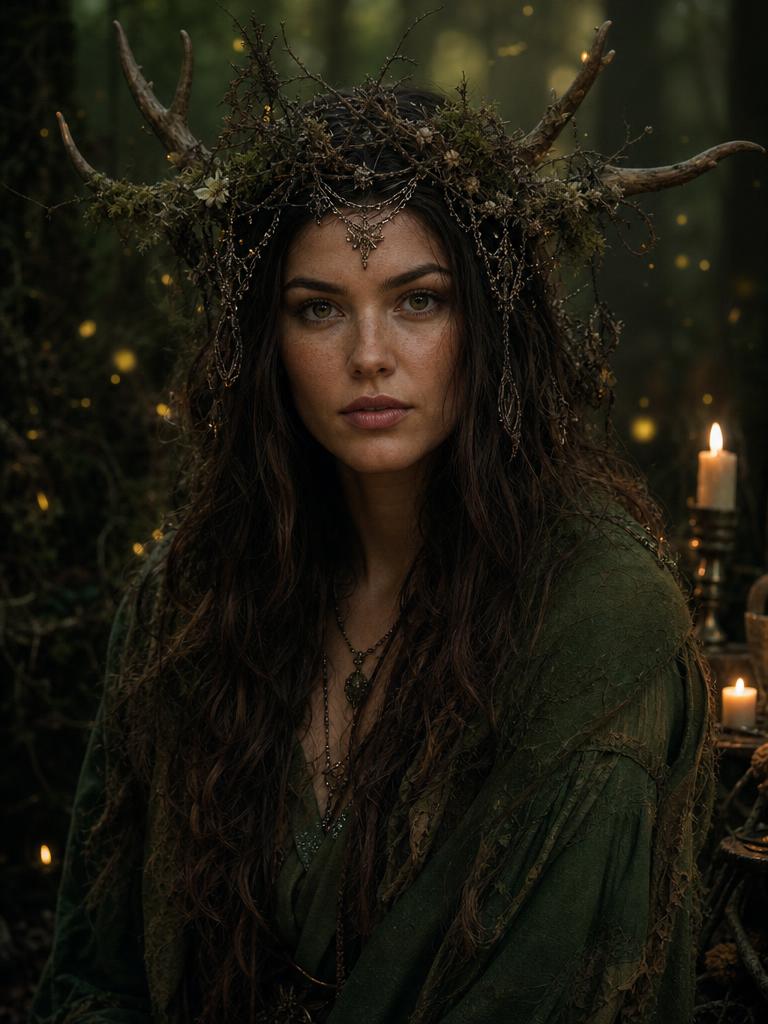
A costume preview works best when the silhouette is obvious at thumbnail size. Violet braids, a celestial gown, wearable armor, a moss-green cloak, or graphic skeleton makeup all read quickly. A costume that depends on a small logo or a specific fabric label is harder to judge.
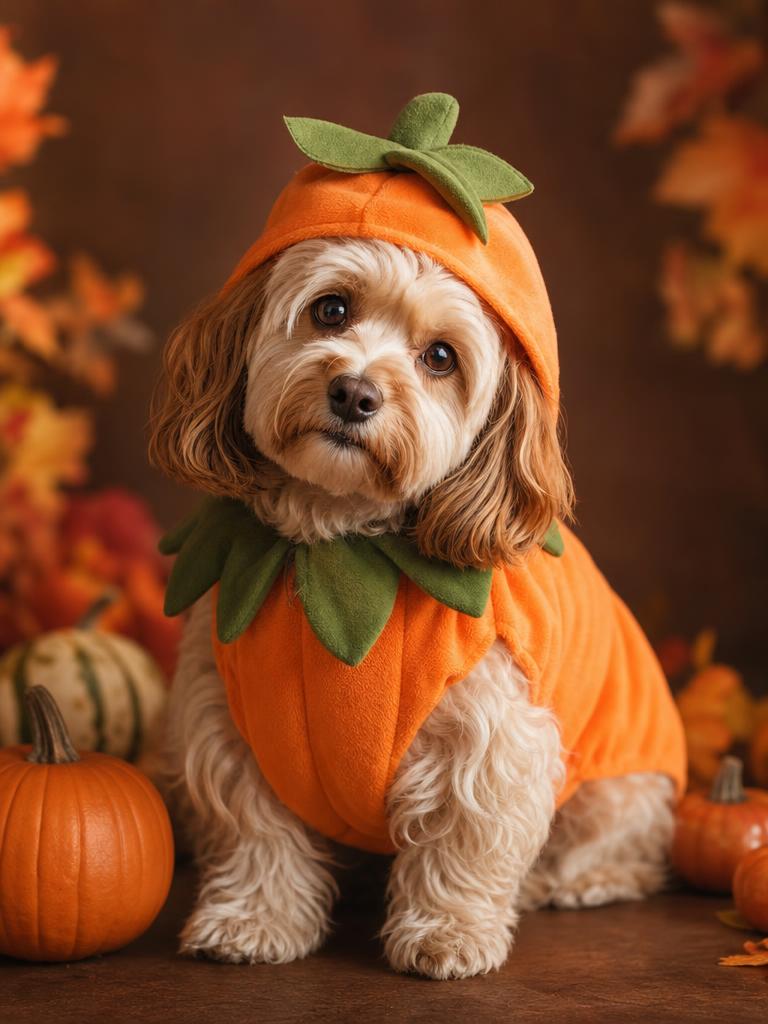
The 2026 research pointed to mascot horror, cosmic princesses, wearable sci-fi armor, forest witches, and pet costumes. We turned those signals into original presets rather than copying a film character. That keeps the page useful without borrowing someone else’s rights.
Use a prompt with five jobs
A reliable editing prompt does five jobs: it names the source, protects identity, describes the costume, describes the scene and light, and lists what must not appear. A prompt that only says “make me a Halloween costume” leaves all five decisions to the model.
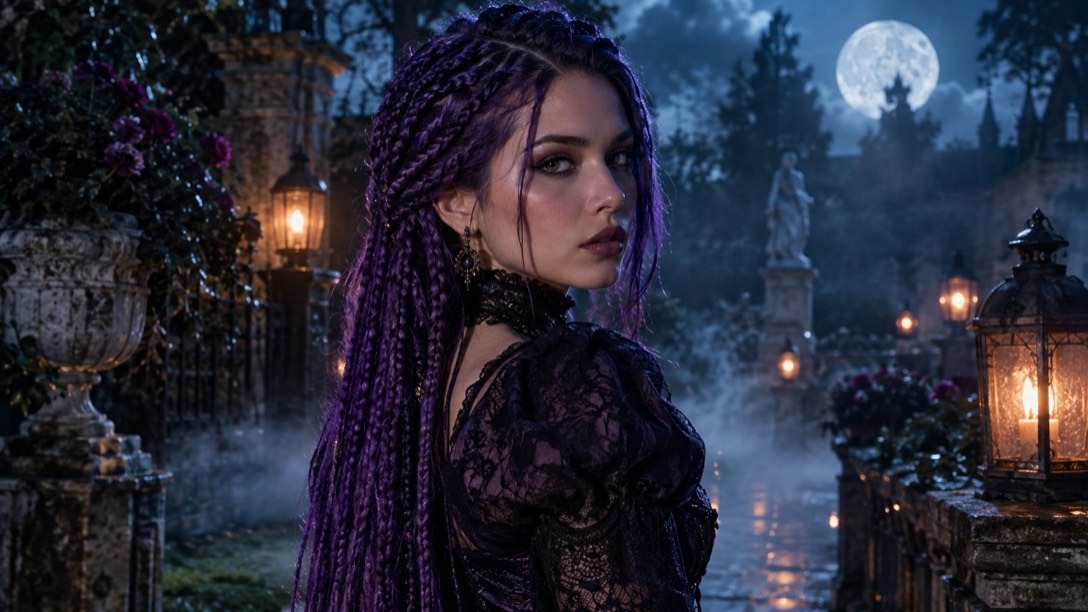
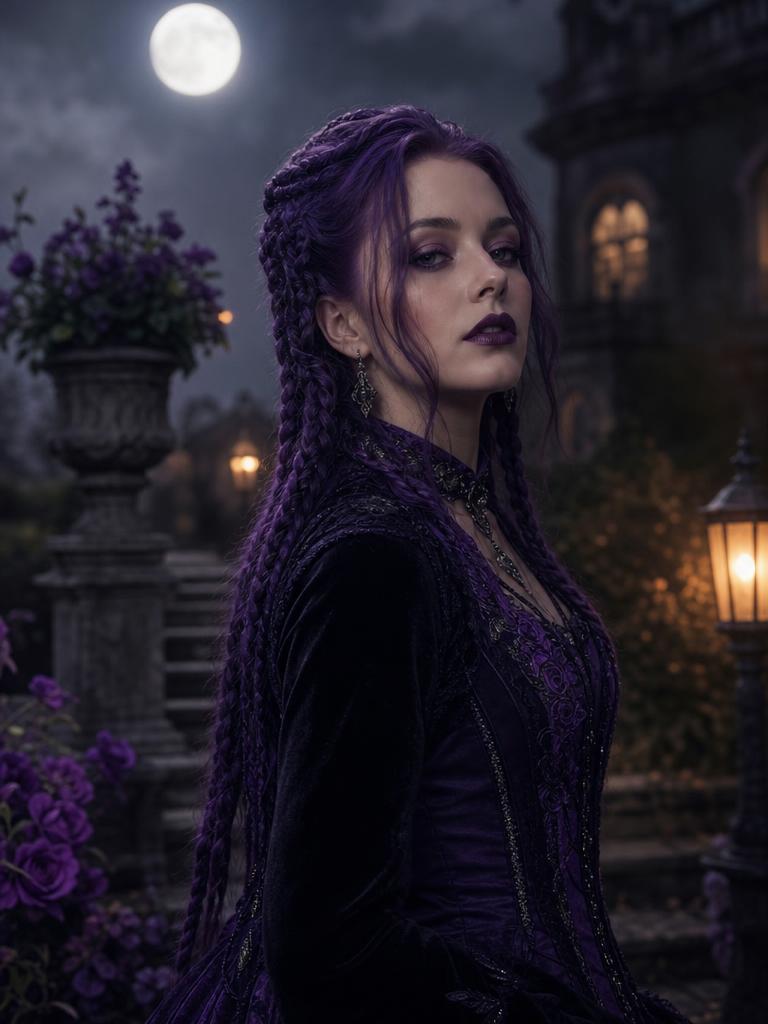
Our Midnight Braids recipe is a useful example. It preserves facial identity and body proportions, changes the hair to violet braids, adds a black-and-purple velvet outfit, places the subject in a moonlit Victorian garden, and forbids extra people, distorted anatomy, text, and watermarks.
Seasonal workspace
Try the look
JPG, PNG or WebP · up to 10 MB · 1 credit only after success
Violet braids, moonlight, and a Victorian garden.
Prompt recipe
Use the uploaded photo as the primary reference. Preserve the subject's recognizable facial identity, facial proportions, skin tone, approximate age, body proportions, pose and natural anatomy. Keep the same number of people as the uploaded photo. Avoid altered facial identity, extra people, extra limbs, duplicated fingers, distorted anatomy, text, logos and watermarks. Transform the subject into an original gothic Halloween fashion portrait. Change the hairstyle into long violet braids decorated with delicate silver hair accessories. Replace the clothing with an elegant black-and-purple velvet outfit featuring subtle lace and metallic details. Place the subject in a moonlit Victorian garden with soft fog, glowing lanterns and dark autumn foliage. Use photorealistic editorial photography, realistic fabric textures, natural skin details and cinematic soft lighting.
New accounts get 5 free credits. Sign in to use them.
Inspect the face before you inspect the costume
The costume is the obvious change, so it gets the first glance. The face is where the real quality shows. Zoom in on the jawline, eyes, nose, mouth, and hairline. Compare the result with the source at the same scale.
Look for a changed eye shape, a softened distinctive feature, a different skin tone, or a smile that does not match the source. A beautiful image with a different face is not a successful costume preview.
Check the hands, hair, and edges
Hands are a common failure point. Count the fingers, check the knuckles, and look for a hand that merges into the costume. Hair is the second common failure: braids can split, disappear, or turn into a solid mass. Costume edges can blur into the background or cut into the skin.
A thumbnail can hide all three. Open the image at full size, then reduce it to the size you would actually post. If the errors are visible at posting size, regenerate or choose a simpler preset.
Decide what the preview is for
A preview can help you choose a color palette, a silhouette, or a photo concept. It cannot tell you whether a garment will fit or whether a makeup product will look the same in real life. Use it as a decision aid, not as evidence.
If you share the image, label it as AI-generated. If you use it for a product, keep the real product photo separate. The most trustworthy workflow is the one that does not pretend a generated costume is a real one.
What a costume preview cannot tell you
A preview cannot tell you how a fabric feels, whether a collar will sit flat, or whether a mask will be comfortable after an hour. It also cannot promise that a specific seller’s costume matches the concept. Those are physical questions that need a product listing, a measurement chart, and sometimes a return policy.
Use the image to decide on a direction, then verify the physical details separately. If the costume depends on a structural piece such as a corset, armor, or a large headpiece, check the weight and the fastening method before you buy. The preview is a visual brief, not a product guarantee.
A ten-minute test with three photos
Run the same preset on three source photos: a front-facing portrait, a three-quarter angle, and a photo with less ideal light. Compare how the face, hairline, and costume edges behave. The front-facing photo usually gives the model the most information; the other two show you the boundary.
Keep the best result and note which source produced it. If the three-quarter photo changes the jawline, you have learned something useful about the tool. That note is more valuable than a folder of random generations.
How to compare two presets fairly
Use the same source photo, the same crop, and the same output size. Change only the preset. Compare the face first, then the silhouette, then the costume details. A preset that preserves the face but produces a weak silhouette may still be useful for a close-up; a preset with a strong silhouette but a changed face is not.
Do not compare a flattering angle with an unflattering one. The source does a lot of the work. A fair test keeps everything stable except the variable you are studying.
What to take away
A good costume preview is a collaboration between your source photo and a precise prompt. Start simple, protect the face, and judge the result at the size you will actually use.
Questions
Why does my generated face look different?
The model may not have enough face detail in the source, or the prompt may be changing too much at once. Use a sharper, more frontal photo and a preset that changes less of the body.
Can I generate a costume from a text description only?
Yes, with a text-to-image model. The result will be a new person rather than a preview of you. This guide is about photo editing, which uses your image as the reference.
How many attempts should I expect?
A clean source and a clear preset often produce a usable result in one or two attempts. A difficult source can take more. Change one variable at a time.